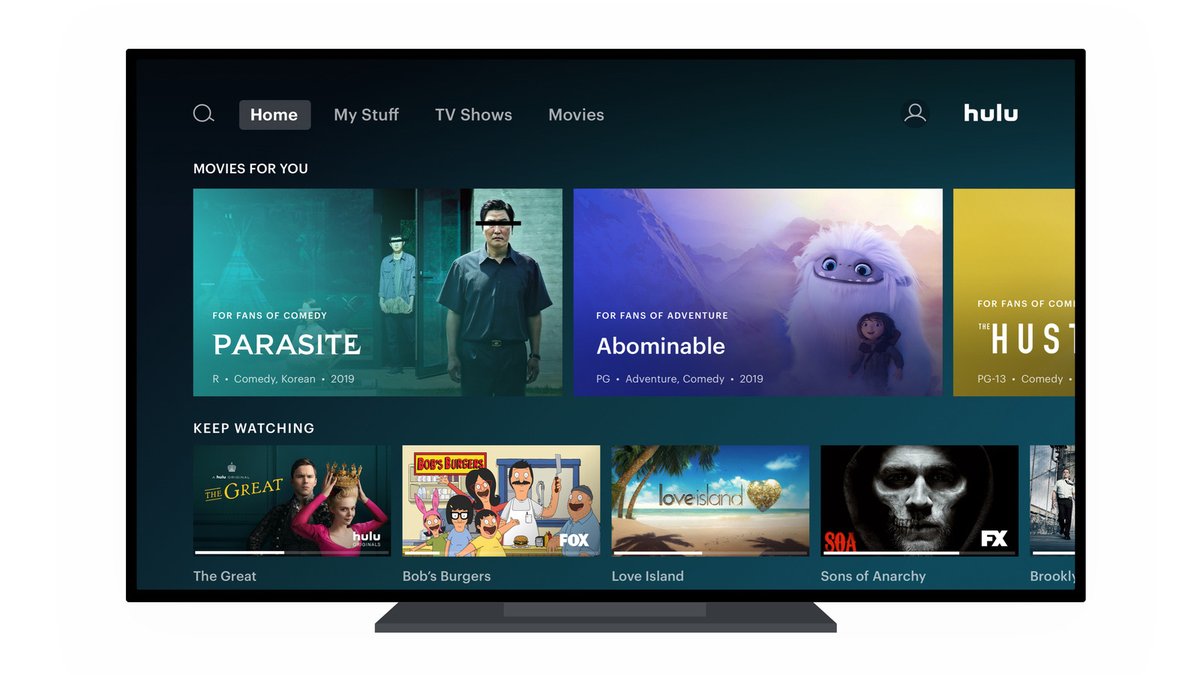
It happens to the best of us: you signed up for a streaming service with great intentions, binged your favorite shows, and now it’s just another recurring charge you no longer need. If you're looking for a clear, no-nonsense Step-by-Step Hulu Cancellation Guide to stop those monthly payments, you've landed in the right place. We'll walk you through exactly how to end your Hulu subscription, ensuring you don't get caught in an endless billing cycle.
No more digging through confusing menus or chasing hidden buttons. By the end of this guide, you’ll know precisely how to cancel Hulu, whether you subscribe directly or through a third-party, and what to expect afterward.
At a Glance: Your Hulu Cancellation Checklist
Before we dive into the specifics, here’s a quick rundown of what you need to know:
- Your Billing Method Matters: The first crucial step is determining if you're billed directly by Hulu or through a third-party like Apple, Google, Amazon, Roku, or PlayStation. This dictates your cancellation path.
- Access Until Cycle End: You'll retain access to Hulu content until the end of your current billing period, even after canceling.
- Confirmation is Key: Always look for a cancellation confirmation email from Hulu or your third-party provider. This is your proof.
- Pause as an Alternative: If you’re not ready to say goodbye forever, Hulu offers a subscription pause option for up to 12 weeks.
- Add-ons Are Separate: Remember to cancel any premium add-ons (like HBO Max or SHOWTIME) individually.
Unmasking Your Billing Method: The Critical First Step
Before you can cancel, you need to know who is billing you. This is the single most important piece of information, as it determines which set of instructions you'll follow. Think of it like deciding which door to open: the one marked "Hulu Direct" or the one for your specific device or platform.
How to Check Your Billing:
- Log in to your Hulu account: Use a web browser (hulu.com) for the easiest experience.
- Navigate to your Account:
- On the website: Click your profile icon (top-right corner).
- On the mobile app: Tap your profile icon (bottom-right corner).
- Select "Account" or "Manage Account": This will take you to your subscription details.
- Look for "Your Subscription" or "Payment Information": Here, you'll see a line indicating your current biller. It will either say "Hulu" directly or name a third-party like "iTunes," "Google Play," "Amazon," "Roku," or "PlayStation Store."
Got it? Great. Now, let's proceed to the correct cancellation path.
The Straightforward Path: Canceling Your Direct Hulu Subscription
If Hulu is billing you directly, the cancellation process is quite simple and can be done via their website or the mobile app. This is the most common scenario for those who signed up directly on Hulu's site or through their smart TV app without an intermediary.
Canceling Hulu Directly via Web Browser (Recommended)
Using a computer or web browser is generally the smoothest way to manage your Hulu account.
- Log In: Head to hulu.com and log in to your account with your username and password.
- Access Your Profile: Once logged in, click on your profile icon in the top-right corner of the screen. This typically looks like a circle with your initial or a generic silhouette.
- Go to Account Settings: From the dropdown menu, select "Manage Account" (sometimes just "Account").
- Locate Your Subscription: On your Account page, scroll down to the "Your Subscription" section. Here, you'll see your current plan and billing details. Click on "view charges" if you need to confirm billing.
- Initiate Cancellation: Within the "Your Subscription" section, look for a link or button that says "Cancel Your Subscription" or simply "Cancel". Click it.
- Decline the Pause Offer (if prompted): Hulu might try to entice you to pause your subscription instead of canceling entirely. If your goal is full cancellation, make sure to select "Continue to Cancel" or a similar option. Don't let them deter you from your mission!
- Confirm Your Decision: You might be presented with various offers or asked for feedback. Politely decline any offers and proceed by selecting "Cancel Subscription" or "Continue with Cancellation" to finalize the process.
Success! You’ll know it’s done when you see a confirmation message on screen. Hulu will also send a cancellation confirmation email to the address associated with your account. Keep this email for your records.
Canceling Hulu Directly via Mobile App (iOS/Android)
While the website is often easier, you can also cancel directly through the Hulu mobile app if you're on the go.
- Open the Hulu App: Launch the Hulu app on your smartphone or tablet.
- Access Your Profile: Tap your profile icon located in the bottom-right corner of the screen.
- Go to Account Settings: Select "Account" from the menu.
- Find Cancellation Option: Scroll down the "Account" page until you see "Cancel Your Subscription". Tap this option.
- Confirm Cancellation: As with the website, you might encounter prompts to pause or reconsider. Stick to your plan and tap through the confirmation steps until you explicitly select "Cancel Subscription".
Again, watch for the on-screen confirmation and, crucially, the confirmation email in your inbox. This is your definitive proof that the cancellation request has been processed. Knowing how to cancel Hulu efficiently can save you future headaches and unexpected charges.
Canceling Hulu Subscriptions Billed Through Third-Party Providers
This is where things get a little different. If you subscribed to Hulu through an app store or a console marketplace, Hulu isn't directly handling your billing. Instead, you'll need to cancel through the platform where you originally made the purchase. Think of it like returning a product: you go back to the store where you bought it, not the manufacturer's head office.
Below are the steps for the most common third-party billing providers.
1. Canceling Hulu Billed via Android Devices (Google Play)
If your Hulu subscription is managed through your Google Play account, here's how to cancel it:
- Open the Hulu App: Launch the Hulu app on your Android device.
- Access Your Profile: Tap the profile icon in the bottom-right corner.
- Go to Account: Select "Account" from the menu.
- Initiate Cancellation: Scroll down and tap "Cancel Your Subscription."
- Confirm in Google Play: The app will likely redirect you to the Google Play Store or prompt you to confirm the cancellation through your Google Play Subscriptions. Follow the on-screen instructions there to finalize the cancellation.
Note: You can also manage Google Play subscriptions directly by opening the Google Play Store app, tapping your profile icon, then selecting "Payments & subscriptions" > "Subscriptions." Find Hulu and cancel from there.
2. Canceling Hulu Billed via iTunes / Apple ID
For those with an iPhone, iPad, or other Apple devices where Hulu was subscribed through your Apple ID:
- Open Settings: On your Apple device, go to the "Settings" app.
- Tap Your Apple ID: At the very top of the Settings menu, tap on your Apple ID (your name and picture).
- Go to Subscriptions: Select "Media & Purchases," then tap "Manage" under Subscriptions. You might need to authenticate with your Face ID, Touch ID, or passcode.
- Find Hulu: In your list of active subscriptions, tap on the Hulu subscription.
- Cancel Subscription: Select "Cancel Subscription" and confirm your choice.
You'll receive a confirmation from Apple that your subscription has been canceled and will not renew.
3. Canceling Hulu Billed via PlayStation
If you signed up for Hulu through your PlayStation console:
- Go to PlayStation Store: From your PlayStation Home screen, navigate to the PlayStation Store.
- Access Your Profile: Select your profile picture (usually in the top-right corner).
- Account Settings: Go to "Account Settings."
- Select Subscriptions: Choose "Subscriptions" from the menu.
- Locate Hulu: Find Hulu in your list of active memberships.
- Cancel Automatic Renewal: Select your Hulu membership and choose to cancel automatic renewal. Follow any subsequent on-screen prompts to confirm.
Your Hulu subscription will then expire at the end of its current billing period.
4. Canceling Hulu Billed via Amazon
For Hulu subscriptions managed through your Amazon account (e.g., via a Fire TV device):
- Go to Amazon Memberships: Open a web browser and go to the "Your Memberships and Subscriptions" page on Amazon.
- Locate Hulu: Scroll through your list of subscriptions to find the Hulu subscription.
- Actions Button: Click the "Actions" button next to Hulu.
- Cancel Subscription: Select "Cancel Subscription" and follow any further instructions to confirm the cancellation.
Amazon will send you an email confirmation once the cancellation is complete.
5. Canceling Hulu Billed via Roku
If you subscribed to Hulu through your Roku device:
- Roku Home Screen: Go to the Roku Home screen.
- Highlight Hulu: Using your Roku remote, highlight the Hulu app icon. Do not click on it yet.
- Press Star (*): Press the star (*) button on your Roku remote. This will open an options menu.
- Manage Subscription: Select "Manage subscription".
- Cancel Subscription: Choose "Cancel subscription" and confirm your decision when prompted.
You'll see a message confirming your subscription will not renew, and access will continue until the end of the current billing cycle.
Don't Forget the Extras: Canceling Hulu Add-ons
Hulu offers a variety of premium add-ons (like Live TV, HBO Max, SHOWTIME, STARZ, Cinemax, and more). It's important to understand that canceling your base Hulu subscription might not automatically cancel these add-ons, especially if they are billed directly by Hulu. You might need to cancel them separately to avoid lingering charges.
Here’s how to manage your Hulu add-ons:
- Log In: Access your Hulu account via the website or mobile app.
- Go to Account: Navigate to your "Account" section (profile icon > Manage Account/Account).
- Find Add-Ons: Look for a section titled "Manage Add-Ons" or similar.
- Cancel Desired Add-on: You'll see a list of your active add-ons. Find the specific add-on you wish to cancel and click its "Cancel" button.
- Confirm: Follow any on-screen prompts to confirm the cancellation of that particular add-on.
Just like with the main subscription, you should receive a confirmation email for each add-on you cancel.
What Happens After You Cancel Hulu? Setting Expectations
You've successfully navigated the cancellation process – congratulations! But what exactly happens next? Here’s a clear breakdown of what you can expect in the days and weeks following your Hulu cancellation.
- Access Until End of Billing Cycle: This is a common and user-friendly policy across most subscription services. Even after you cancel, you will retain full access to Hulu content (and any remaining add-ons) until the very last day of your current billing period. So, if you cancel halfway through the month, you still get to enjoy Hulu for the remaining weeks you've already paid for.
- No Further Charges: Once your current billing cycle concludes, Hulu will not charge you again for the subscription. This is the primary goal of our Step-by-Step Hulu Cancellation Guide! The confirmation email you received is your proof that future charges have been stopped.
- Loss of Subscription Benefits: Once your access period ends, you'll naturally lose the benefits of your specific Hulu plan. This means no more ad-free viewing (if you had that plan), no more Live TV channels, and no access to the full Hulu streaming library.
- Deletion of Watchlist and Viewing History: This is an important detail for long-time subscribers. Hulu states that your watchlist and viewing history will be deleted within 90 days of your subscription ending. If you ever plan to return to Hulu, be aware that you'll be starting fresh with your viewing preferences.
Considering a Break? How to Pause Your Hulu Subscription
Sometimes, you don't want to break up with Hulu forever, just take a breather. Maybe you're going on vacation, facing a busy period, or simply trying to cut down on screen time temporarily. Hulu offers a handy "Pause" feature that can be a great alternative to full cancellation.
Benefits of Pausing:
- Temporary Break: You can pause your subscription for up to 12 weeks. This allows you to step away without fully canceling.
- No Re-Subscription Hassle: When the pause period ends, your subscription (and billing) automatically resumes. No need to go through the sign-up process again.
- Keep Your History: Unlike a full cancellation, pausing generally retains your watchlist and viewing history for when you return.
How to Pause Your Hulu Subscription:
- Log In: Go to hulu.com and log in to your account.
- Access Your Account: Click your profile icon (top-right) and select "Manage Account" (or "Account" in the app).
- Find Pause Option: In the "Your Subscription" section, instead of "Cancel," look for an option like "Pause Subscription" or "Manage Your Plan."
- Select Duration: Choose the desired pause duration (up to 12 weeks).
- Confirm: Follow the prompts to confirm your pause.
Your billing will automatically resume after the selected pause period. You'll receive email reminders before your subscription reactivates.
Important Considerations & Pitfalls to Avoid
Navigating subscriptions can sometimes feel like a minefield. Here are some critical points to keep in mind to ensure a smooth Hulu cancellation process and avoid any unwelcome surprises.
- No Refunds for Partial Months: Hulu, like many streaming services, operates on a pre-paid monthly (or annual) billing cycle. If you cancel your subscription partway through a billing period, you won't receive a prorated refund for the remaining days. Instead, you'll simply retain access to the service until the end of that cycle, as outlined above. This is standard practice.
- Bundled Subscriptions (Hulu + Disney+ + ESPN+): This is a crucial point often overlooked. If your Hulu subscription is part of a bundle, such as the popular Disney Bundle (Hulu, Disney+, and ESPN+), canceling Hulu might have ripple effects.
- Loss of Discount: You will likely lose the significant discount associated with the bundle. The remaining services (Disney+, ESPN+) would then typically revert to their full, individual monthly prices.
- Potential Loss of Access: Depending on how the bundle was initiated and billed, canceling Hulu might sometimes affect your access to the other services if Hulu was the primary billing account for the entire bundle.
- Always Check: If you have a bundle, we highly recommend checking your billing details and any terms specific to your bundle before proceeding. You may need to manage the bundle directly through Disney+ or the primary billing account, not just Hulu.
- Always Confirm with Email: We've mentioned this multiple times, but it bears repeating. An on-screen confirmation is good, but a confirmation email is gold. It provides a timestamped record that you initiated the cancellation. If you don't receive one, it's a red flag that the cancellation might not have gone through correctly, and you should follow up.
- Removing Payment Methods for Peace of Mind: While canceling your subscription should stop future charges, some users prefer an extra layer of security. After receiving your cancellation confirmation, you can choose to remove your payment method (credit card, PayPal, etc.) from your Hulu account. This can offer additional peace of mind against accidental re-subscriptions or billing errors.
- Re-Subscribing is a Breeze: Don't worry about burning bridges. If you change your mind later, re-subscribing to Hulu is incredibly easy. Simply log back into your account, select a new plan, and you'll be back to streaming in no time. Your old account details (like profile names) will typically remain, even if your watchlist is gone.
Troubleshooting & Getting Help: Hulu Customer Support
Even with the clearest Step-by-Step Hulu Cancellation Guide, sometimes things don't go as planned. You might encounter technical glitches, have unique billing circumstances, or simply be unable to find the correct cancellation option. If you run into any issues, don't hesitate to reach out to Hulu's customer support. They are equipped to handle these situations.
Before You Contact Support:
- Have Account Details Ready: Your email address, billing information, and details about when you subscribed.
- Specify Your Biller: Clearly state whether you believe you're billed by Hulu directly or a third-party (Apple, Amazon, etc.).
Hulu's Customer Support Channels (Available 24/7): - Live Chat (Recommended for Quick Issues): Often the fastest way to get direct assistance. Look for a "Chat with us" button on the Hulu help center website.
- Phone Support: For more complex issues or if you prefer speaking to a person.
- Phone Number: 855-738-6978
- Email Support: Good for non-urgent inquiries where you might need to attach screenshots or detailed explanations.
- Email: privacy@hulu.com (Note: This is often for privacy-related queries, but they can redirect you.) For general support, look for a contact form on their help center.
- Social Media: Hulu's support team is active on social platforms.
- Twitter: @hulu_support
- Facebook: Hulu's official Facebook page
Don't let a snag in the process deter you. Hulu's support team is there to ensure your cancellation, or any other account management task, is completed successfully.
Ready to Reconnect? Re-Subscribing to Hulu
Life changes, and so do our entertainment needs. Maybe you canceled Hulu for a while, and now a new show has caught your eye, or you simply miss the library of content. The good news is that coming back to Hulu is incredibly easy.
If you decide to re-subscribe in the future:
- Log In to Your Old Account: Simply go to hulu.com and log in with your previous Hulu credentials. Your account should still exist, even if it's inactive.
- Choose a New Plan: You'll be prompted to select a new subscription plan (e.g., Hulu with Ads, Hulu (No Ads), Hulu + Live TV).
- Update Payment Info: If you removed your payment method during cancellation, you'll need to re-enter it.
- Start Streaming: Once you've selected a plan and confirmed payment, you'll immediately regain access to Hulu's content.
It's a seamless process designed to welcome you back without any hassle.
Take Control of Your Subscriptions
Successfully canceling a service like Hulu is more than just stopping a charge; it's about taking control of your digital subscriptions and ensuring you're only paying for what you truly value and use. With this comprehensive Step-by-Step Hulu Cancellation Guide, you now have all the tools and knowledge required to manage your Hulu account confidently.
Whether you're moving on to new streaming pastures, taking a temporary break, or simply decluttering your monthly expenses, you can rest assured that your Hulu subscription is handled. Enjoy the satisfaction of a clear billing statement and the peace of mind that comes with being in charge of your subscriptions.