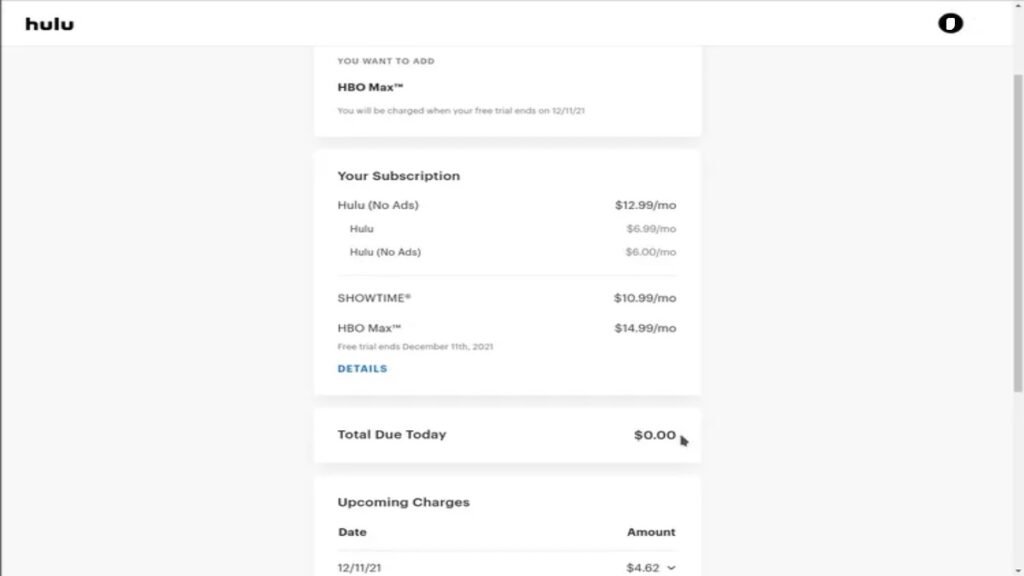
You've been there: You signed up for a great streaming deal, perhaps bundling Hulu with other services or adding a slew of premium channels, only to find your viewing habits have shifted, or your budget needs a trim. Now you’re eyeing that monthly statement and thinking, "How exactly do I go about cancelling Hulu bundles and add-ons without accidentally nuking my entire digital life?"
It's a common dilemma, and one Hulu tries to make straightforward, but the nuances of bundles, third-party billing, and specific add-ons can make it feel like navigating a maze. Don't worry, we're here to shine a light on the path. This guide will walk you through everything you need to know, ensuring you can manage your Hulu subscriptions with confidence and ease.
At a Glance: Your Quick Cancellation Checklist
- Access Your Account: Always start by logging into your Hulu account on a web browser (not the app).
- Identify Your Plan: Know if you have a standalone Hulu plan, a Hulu-billed bundle (like the Disney Bundle), or a third-party billed subscription.
- Distinguish Add-ons vs. Base Plan: Cancelling an add-on is different from cancelling your entire Hulu subscription or a bundle.
- Understand Billing Cycles: You typically retain access to cancelled services until the end of your current billing period.
- Third-Party Billing: If you signed up through a third party (e.g., Apple, Amazon, Roku), you'll likely need to cancel through their platform.
- Check for Promotions: Be aware of any promotional periods; cancelling early might forfeit remaining benefits.
Unpacking Your Hulu Subscription: Bundles, Add-ons, and Why They Matter
Before you can confidently prune your subscription, it helps to understand what you're working with. Hulu offers a flexible ecosystem designed to cater to diverse viewing preferences, but this flexibility can sometimes create layers of complexity when it's time to adjust.
Hulu's Core Plans: These are your foundation:
- Hulu (ad-supported)
- Hulu (No Ads)
- Hulu + Live TV (ad-supported or No Ads)
The Power of Add-ons: Add-ons are extra features or content packages you can tack onto your base Hulu plan. Think of them as bespoke upgrades for your streaming experience. Hulu offers a variety, broadly categorized:
- Partner Add-ons: These typically bring content from other streaming platforms directly into your Hulu app.
- ESPN (Select/Unlimited): For sports fans, offering live events and original content. ESPN Unlimited takes it further, granting access to nearly all ESPN networks, particularly relevant if you have the Disney+, Hulu, HBO Max Bundle.
- Extra Member: A unique way to share your bundle subscription (Disney+, Hulu, ESPN+) with someone outside your household, with their own profile and limited access. Note that this isn't available for all bundle plans.
- Premium Add-ons: These unlock access to premium movie channels and their on-demand libraries.
- Paramount+ with SHOWTIME: Home to hits like Yellowjackets and Billions. You can often stream directly on Paramount+'s app/website using Hulu as your provider.
- HBO Max: Offers acclaimed HBO series and Max Originals. Be aware: older "HBO on Hulu" add-ons didn't include Max app access; newer ones do.
- Cinemax: A treasure trove of hit movies and action-packed original series.
- STARZ: Known for buzzworthy original series like Outlander and blockbuster movies. Like Paramount+, you can often use Hulu as your TV provider to access the standalone STARZ app.
- Live TV Add-ons: These are exclusive to subscribers of Hulu + Live TV and expand your channel lineup.
- Entertainment: Adds channels like American Heroes Channel, Cooking Channel, Hallmark Family, and MTV2.
- Sports: Enhances your sports coverage with NFL RedZone, FanDuel Racing, Outdoor Channel, and Tennis Channel.
- Español: Provides Spanish-language content from CNN en Español, Discovery en Español, ESPN Deportes, and more.
- Unlimited Screens: A fantastic option for busy households, allowing unlimited simultaneous streams at home and up to three mobile streams on the go. (Note: HBO Max content still has a two-screen limit within the Hulu app).
The Allure of Bundles: Bundles combine Hulu with other popular services, often at a discounted rate compared to subscribing to each individually. The most common is the Disney Bundle (Hulu, Disney+, ESPN+), but others exist, including some with HBO Max. These are often managed as a single billing entity, which impacts how you make changes.
Why You Might Consider Unsubscribing (and That's Totally Fine!)
Life changes, and so do our entertainment needs. There are plenty of valid reasons to adjust your Hulu subscription:
- Budget Trimming: Streaming services can add up. Cutting back on extras is a quick way to save.
- Content Overload: Sometimes less is more. If you're not utilizing all those premium channels, why pay for them?
- Shifting Interests: Maybe you binged everything on STARZ and are ready for a different flavor of content.
- Limited Usage: You're simply not watching enough of a particular add-on or bundle component to justify the cost.
- Finding a Better Deal: A different service might offer content you prefer, or a new bundle might pop up that better suits your needs.
- Temporary Break: Planning a vacation or just need a digital detox? Pausing or cancelling can be a smart move.
Whatever your reason, remember that managing your subscriptions is about making them work for you.
The Crucial First Step: Know How You're Billed
This is arguably the most important piece of information you need before attempting any cancellation. Your billing method dictates where and how you make changes.
- Directly Through Hulu: You subscribed on Hulu's website, and your monthly payments go straight to Hulu. This is the most straightforward scenario for managing add-ons and bundles.
- Through a Third-Party Provider: You might have signed up for Hulu, or a bundle including Hulu, through another service like:
- Apple (iTunes)
- Amazon (Amazon Appstore or Prime Video Channels)
- Roku
- Spotify Premium (often included with a Hulu (ad-supported) plan)
- Sprint/T-Mobile
- Other telecommunication or internet providers
Why this matters: If you're billed by a third party, Hulu's account management page will likely redirect you or tell you to manage your subscription elsewhere. Trying to cancel directly through Hulu in these cases won't work.
How to Check Your Billing Party:
- Log into your Hulu account on a web browser.
- Go to your "Account" page.
- Look under the "Your Subscription" or "Payment Information" section. It should clearly state who bills you (e.g., "Billed by Hulu," "Billed by Apple," "Billed by Spotify").
Once you know this, the rest of the process becomes much clearer.
Step-by-Step: Cancelling Hulu Add-ons
Ready to shed those extra channels? Here's how to do it.
1. Log In to Your Hulu Account (Web Browser Only)
Crucially, you cannot cancel add-ons or bundles directly through the Hulu app on your phone, tablet, or smart TV. You'll need to use a web browser on a computer or mobile device.
- Go to Hulu.com.
- Log in using your email address and password.
2. Navigate to Your Account Page
Once logged in:
- Hover over your profile icon (or name) in the top right corner of the screen.
- Select "Account" from the dropdown menu.
3. Find "Add-ons" or "Manage Add-ons"
On your Account page, scroll down to the "Your Subscription" section.
- You'll see your current plan details.
- Look for a section titled "Add-ons" or a link like "Manage Add-ons." Click on it.
4. Remove Your Desired Add-ons
- Here, you'll see a list of all add-ons currently active on your account.
- Each add-on will have a checkbox or a toggle switch next to it.
- Uncheck the box or toggle off the switch for each add-on you wish to remove.
- A confirmation message might appear, explaining that you'll retain access until the end of your current billing cycle.
- Important: Scroll to the bottom of the page and click "Review Changes" or a similar button to confirm your selections.
- You'll likely see a final confirmation screen summarizing your new subscription cost and the changes. Confirm one last time.
What Happens Next?
- Access Until End of Billing Cycle: When you cancel an add-on, you typically retain access to that content until the last day of your current billing period. You won't be charged for it again after that.
- Proration: Hulu generally does not offer prorated refunds for partial months of service if you cancel mid-cycle. You pay for the full month, regardless of when you cancel, but you get to use it for the full month.
- Billing Adjustment: Your next bill will reflect the removal of the add-on(s), and your monthly charge will decrease accordingly.
Step-by-Step: Cancelling Hulu Bundles
Cancelling a bundle can be a bit more involved, especially if it includes services like Disney+ or ESPN+.
Scenario 1: Cancelling a Hulu-Billed Bundle (e.g., The Disney Bundle)
If Hulu bills you directly for your bundle (most common for the Disney Bundle):
- Log In and Go to Account: Follow steps 1 and 2 from the "Cancelling Hulu Add-ons" section above.
- Locate "Your Subscription" and "Cancel":
- On your Account page, under "Your Subscription," you'll see your bundle details.
- Look for a link that says "Cancel Your Subscription," "Cancel," or "Pause/Cancel."
- Follow the Prompts:
- Hulu might try to entice you to stay with offers or options to pause your subscription instead of cancelling. Read these carefully.
- If you're determined to cancel, continue through the prompts, often involving a reason for cancelling.
- You'll likely be asked to confirm your cancellation multiple times.
- Understand Bundle Implications:
- The Disney Bundle (Hulu, Disney+, ESPN+): If you cancel a Hulu-billed Disney Bundle, all three services will be cancelled together at the end of your billing cycle. You won't retain Disney+ or ESPN+ separately unless you've subscribed to them independently.
- Other Bundles (e.g., with HBO Max): The same principle applies. Cancelling the primary bundle cancels all included components billed under that bundle.
Scenario 2: Cancelling a Third-Party Billed Bundle (e.g., Through Spotify, Apple, etc.)
This is where knowing your billing party becomes critical. You cannot cancel these bundles directly through Hulu.
- Identify Your Billing Party: As discussed earlier, check your Hulu "Account" page under "Your Subscription" to see who bills you.
- Go to the Third-Party Platform:
- Apple (iTunes/App Store):
- On an iOS device, go to Settings > [Your Name] > Subscriptions.
- Find your Hulu subscription and tap "Cancel Subscription."
- On a computer, open iTunes, go to Account > View My Account, sign in, and then find Subscriptions.
- Amazon (Appstore/Prime Video Channels):
- Go to Amazon.com, log in, and navigate to "Accounts & Lists" > "Memberships & Subscriptions."
- Find your Hulu subscription and follow the cancellation steps.
- Roku:
- On your Roku device, highlight the Hulu channel, press the
*(star) button, and select "Manage Subscription." - Alternatively, log into your Roku account online, go to "Manage Your Subscriptions."
- Spotify:
- Log in to your Spotify account on their website.
- Go to your "Account Overview" and then "Your plan."
- You should see options to manage or cancel your Hulu add-on.
- Other Providers (e.g., Sprint, Verizon, Internet Providers): You will need to log into their account portal or contact their customer service directly to manage the Hulu portion of your bundle.
- Follow Their Specific Cancellation Process: Each third-party platform will have its own sequence of steps to confirm cancellation. Pay close attention to any warnings or confirmations.
Important Note for Third-Party Bundles: Cancelling the bundle through the third party will usually cancel all components of that specific bundle. For instance, if your Spotify Premium account includes Hulu, cancelling your Spotify Premium may cancel Hulu, or you might have an option to remove Hulu while keeping Spotify Premium (less common). Always read the specific terms on their site.
When You Can't Cancel Online: Reaching Out to Support
While Hulu aims for self-service, there are rare instances where you might hit a snag:
- Technical Glitches: The website isn't loading correctly, or buttons aren't working.
- Unclear Billing: You're unsure who is billing you, or the information on your account page is confusing.
- Special Circumstances: You're looking for a prorated refund due to an error, or have a unique situation not covered by standard cancellation.
In these cases, don't hesitate to contact Hulu Customer Support. - Visit the Hulu Help Center (the same source material for this guide!)
- Look for options like "Contact Us," "Chat," or "Call Us." Be prepared to provide your account details for verification.
What to Expect After You Cancel
The cancellation isn't immediate, and that's usually a good thing!
- Continued Access: For both add-ons and bundles, you will almost always retain access to the services until the end of your current billing period. If your billing cycle ends on the 15th, and you cancel on the 1st, you can still watch for those two weeks.
- No Further Charges: Your account will not be charged for the cancelled service(s) on your next billing date.
- Confirmation Email: Hulu typically sends a confirmation email after a successful cancellation. Keep this for your records.
- Account Status: Your main Hulu account might switch to a "paused" or "inactive" status if you cancelled your entire base plan. Your profiles and watch history are usually saved for a period, making re-subscription easy.
- Re-subscribing: Changed your mind? Re-subscribing to Hulu or its add-ons is usually very simple, often just a click away on your account page.
Smart Strategies Before You Hit "Cancel"
Sometimes, cancelling outright isn't your only option, or not even the best one. Consider these alternatives:
1. The Power of Pausing
If you're going on vacation, facing a busy period, or just need a short break, Hulu offers a "pause" option for your base plan.
- How it Works: You can pause your subscription for up to 12 weeks. Your billing will simply stop, and then resume automatically once the pause period ends.
- Benefits: You don't have to go through the full cancellation and re-subscription process, and your settings and watch history remain intact.
- Caveat: This is usually for the base plan, and not typically available for individual add-ons or complex third-party bundles.
2. Downgrading Your Base Plan
Instead of cancelling everything, perhaps a simpler, more affordable Hulu plan is all you need.
- You can often switch from Hulu (No Ads) to Hulu (ad-supported) to save a few dollars.
- If you have Hulu + Live TV and realize you don't watch enough live content, you can downgrade to a standard Hulu plan.
3. Reviewing Add-on Usage
Take a moment to truly assess which add-ons you're using. Are you really watching enough Cinemax or the Sports Add-on to justify its monthly cost? Often, we sign up for things "just in case" and never actually use them. Removing underutilized add-ons is a great way to save without sacrificing your core Hulu experience.
4. Exploring Alternative Bundles
If your main goal is to save money while keeping multiple services, investigate if a different bundle might be more cost-effective. Sometimes, a new promotional bundle from Hulu or a third party could offer better value than your current setup. For example, some might find the standard Disney Bundle sufficient, while others might explore options that include the Hulu Max bundle for more premium content.
Common Questions About Hulu Cancellations
Will I lose access to my shows immediately after cancelling an add-on or bundle?
No, in most cases, you'll retain access to the cancelled service until the end of your current billing period. Hulu charges monthly, so you've paid for that full month of service.
Can I get a refund if I cancel mid-month?
Generally, Hulu does not offer prorated refunds for partial months of service. When you cancel, you are cancelling future billing cycles, but you'll still get to use the service for the remainder of the current period you've already paid for.
If I cancel the Disney Bundle, do I lose access to Disney+ and ESPN+?
Yes, if you're billed for the Disney Bundle through Hulu, cancelling the bundle will terminate access to all three services (Hulu, Disney+, and ESPN+) at the end of your current billing cycle. You would then need to subscribe to Disney+ and/or ESPN+ separately if you still want them.
What happens to my profiles and watch history when I cancel?
If you cancel your entire Hulu subscription, your profiles and watch history are typically saved for a period (often several months). If you decide to re-subscribe within that timeframe, your account often picks up right where you left off.
Can I re-subscribe to Hulu or an add-on after cancelling?
Absolutely! Re-subscribing is usually a straightforward process. Just log into your Hulu account (even if it's inactive), and you'll often find a prominent option to restart your subscription or add services back. Sometimes, you might even be offered a win-back promotion. If you just need a brief break, considering pausing your Hulu subscription might be an even better option.
Does cancelling an add-on affect my base Hulu plan?
No, cancelling an individual add-on (like STARZ or the Sports Add-on) only removes that specific service. Your base Hulu plan (e.g., Hulu (ad-supported) or Hulu + Live TV) will remain active, and you'll continue to be billed for it. This granular control is one of the benefits of Hulu's flexible system.
I'm having trouble cancelling through my third-party provider. What should I do?
If you've followed the steps for your specific third-party provider (Apple, Amazon, Spotify, etc.) and are still encountering issues, your best bet is to contact their customer support directly. They manage the billing relationship for that specific bundle or subscription. For general Hulu account issues, you can always visit the Hulu Help Center.
Taking Control of Your Streaming Spend
Managing your streaming subscriptions shouldn't feel like a chore. By understanding how Hulu bundles and add-ons work, knowing your billing method, and following the clear steps outlined here, you can confidently adjust your services to match your evolving needs and budget. Whether you're cutting costs, simplifying your options, or just taking a temporary break, the power to choose is firmly in your hands.
Don't let unused add-ons or forgotten bundles drain your wallet. Take a few minutes to review your account, make the necessary adjustments, and tailor your Hulu experience to be exactly what you want it to be. If you're looking to make more fundamental changes to your Hulu account, you can always learn how to cancel your entire Hulu subscription at any time.